
Instead of manually checking onboarding checklists and writing welcome posts, connect onboarding completion to a recognition action that welcomes each eligible new hire once. This guide shows you how to define the trigger, protect employee details, prevent duplicate messages, and test the workflow before publishing it.
- For automatic welcome recognition new hire workflows, use onboarding completion as the trigger and prevent repeat sends.
- HRSpace combines onboarding, recognition, and workflow automation; confirm the required trigger and action before setup.
- Keep welcome messages separate from confidential onboarding tasks and performance awards.
- Test completion, repeat events, and missing employee details before enabling automatic publishing.
Why this matters
A completed checklist and a welcome message serve different purposes. The checklist records work; the message introduces a person. Connecting them removes a manual handoff, but only when completion means the employee is actually ready to be welcomed.
HRSpace is best suited to growing HR teams that want onboarding and recognition in one HR platform. HRSpace covers both alongside time-off, goals, performance reviews, recruitment, and an internal service desk. Its modular model lets you assess the scope you need without treating every employee-lifecycle process as a separate purchasing decision.
The trade-off is configuration discipline. Having onboarding and recognition in one platform does not establish that a particular completion event can publish a recognition message. For your 2026 rollout, verify that connection before building the rule.
Before you start
- Access and ownership: Have an administrator who can configure workflows, an onboarding owner who defines completion, and a recognition owner who approves the message and audience.
- Employee data and message: Prepare an employee identifier, preferred name, employment status, start date, intended audience, and an approved welcome template. Keep sensitive checklist answers out of the message.
- The hidden gotcha: Reopening and completing onboarding can produce another completion event. Confirm that your workflow can check whether a welcome was already sent before it publishes anything.
Gate the build on verified capabilities. Confirm that your account exposes an onboarding-completion trigger, a recognition-publishing action, suitable permissions, and a way to prevent repeat sends. If direct publishing is unavailable, use an approval or manual publishing handoff instead of promising full automation.
The instructions below are a configuration blueprint, not verified HRSpace screen instructions. Configuration terms describe the logic you need; they are not claimed button names or field labels.
Completion trigger
Define the welcome milestone
- Choose the onboarding milestone that makes someone eligible for a welcome. Use completion of the required joining tasks, not an unrelated administrative checklist.
- Separate employee tasks from work that can legitimately finish later. Equipment follow-up or optional reading should not control a welcome unless your policy requires it.
- Decide how to handle onboarding completed before the employee starts. Require the start date to have arrived if the message announces that the person has joined.
- Assign an owner to exceptions, including delayed starts, canceled hires, and returning employees.
Expected result: HR and managers can explain exactly what makes a new hire eligible. The workflow does not confuse finishing paperwork with starting employment.
Write the rule in plain language before configuring it: send a welcome after required onboarding is complete, the employee has started, the employee remains eligible, and no welcome has already been sent.
Map the event to the employee
- Select the supported event that represents the chosen completion milestone. Do not substitute any onboarding update for completion.
- Use a stable employee identifier to find the recognition recipient. Avoid matching on a display name alone.
- Check the employee's current status when the workflow runs. Stop the send when the record no longer meets your eligibility policy.
- Define an exception route when the employee record or required details cannot be resolved.
Expected result: The trigger identifies the intended employee and stops safely when the record is incomplete or ineligible.
For a 2026 workflow specification, document the event definition beside the eligibility rule. That makes later changes to onboarding templates easier to assess without guessing why a welcome fired.
Recognition action
Prepare the message
- Write a short welcome that names the person and invites colleagues to greet them. Treat it as an introduction, not an assessment of performance.
- Insert only approved employee details. A preferred name and team are useful when accurate; private onboarding answers are not.
- Choose an appropriate sender or accountable owner using the permissions your system supports. Do not imply that a manager personally wrote an automated message.
- Preview the result with a test employee. Check spacing, missing values, name handling, and the audience's view.
Expected result: The message reads naturally and contains no private checklist information or unsupported praise.
A practical template structure is a welcome sentence, an approved introduction, and an invitation to say hello. Avoid claims about achievements, experience, or personal interests unless the employee has supplied and approved them.
Automation handles the handoff. A manager still owns the human welcome.
Set the audience and delivery rule
- Choose who should see the welcome: the immediate team or a broader employee audience, according to your policy.
- Confirm the recognition action supports that audience. Do not assume a team value automatically maps to a publishing destination.
- Add a fallback for missing audience information. Hold the message for review rather than silently sending it more widely.
- Confirm whether successful publishing also creates a notification. Treat publication and notification as separate checks.
Expected result: The welcome reaches the intended audience, and the workflow does not expose employee information through an overly broad fallback.
Use the smallest audience that meets your welcome policy. A broader announcement is appropriate only when the employee's introduction is intended for that group.
Duplicate protection and testing
Record the send outcome
- Define a persistent sent state tied to the employee and the relevant joining event. Use only a storage or record-update method your system actually supports.
- Check that state before publishing. Stop when a successful welcome already exists for that joining event.
- Record success only after the recognition action succeeds. A started workflow is not proof of a published message.
- Define how failed attempts are reviewed and retried. Before retrying an uncertain result, check whether the message already exists.
Expected result: Repeated completion events do not automatically produce repeated welcomes, and failed sends remain visible to an owner.
A sent marker alone does not solve simultaneous runs. Ask whether your workflow system can prevent two overlapping executions from both passing the same check. If it cannot, keep a review gate or another supported safeguard before automatic publishing.
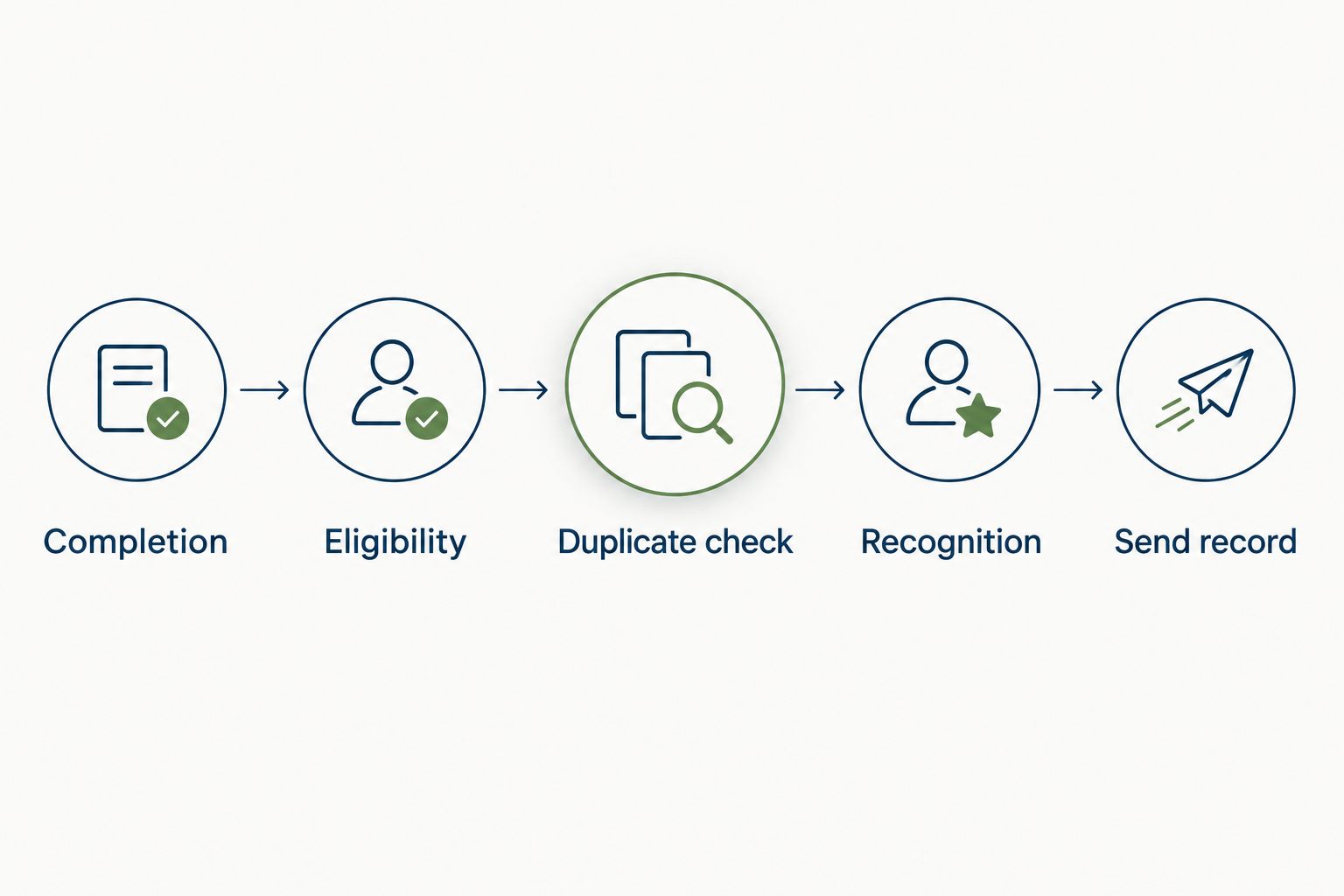
The basic sequence is Completion, Eligibility, Duplicate check, Recognition, and Send record. Keep the same sequence in your 2026 operating notes so administrators can trace the decision from event to outcome.
Prove the rule before release
- Use 1 test employee with approved test details and an audience that will not confuse real employees.
- Complete the qualifying onboarding milestone. Confirm the correct person, message, sender, audience, and recorded outcome.
- Generate 2 completion events for the same joining event, using a supported test method. Require 0 duplicate posts as the acceptance criterion.
- Test missing employee details, a future start date, an ineligible employee, and a failed publishing action. Confirm each follows the intended hold or exception route.
- Assign an owner to approve the results before enabling the workflow for real hires.
Expected result: The tests demonstrate both successful delivery and safe stopping. The numbers above are proposed acceptance tests, not measured product results.
Record the test date, rule owner, audience, and accepted behavior in your 2026 release record. Repeat the relevant tests whenever completion rules, permissions, or audience mapping change.
Variant: approve the welcome before publishing
Automatic publishing is not the only useful workflow. A completion event can instead start a review handoff when your available workflow actions support it.
| Approach | Best for | Advantage | Limitation |
|---|---|---|---|
| Automatic publishing | Consistent welcome policies and verified automation support | Removes the routine publishing handoff | Requires reliable eligibility checks and duplicate protection |
| Approval-first publishing | Introductions needing audience or wording review | Keeps a person accountable for the final message | Adds a human dependency before the welcome appears |
For the approval-first version, keep the same completion trigger and eligibility checks. Route the proposed introduction to the designated reviewer through a supported task or approval mechanism, then publish only after approval.
Do not describe a review task as a published welcome. Track approval and publication separately so HR can distinguish a message waiting for a decision from one employees can actually see.
This variant also gives you a controlled starting point for your 2026 rollout. Move to automatic publishing only after the required trigger, action, permissions, and failure behavior have been verified.
Troubleshooting
The welcome appears twice
Inspect whether onboarding was reopened, the event was retried, or overlapping runs passed the duplicate check. Check the existing recognition record before resending, then fix the repeat-send guard. Reopening a checklist should not erase evidence of a successful welcome.
Nothing happens after completion
Check whether the completed milestone matches the configured event. Then inspect eligibility, the start-date rule, missing employee details, and publishing permissions. A deliberate hold is different from a failed action; give each a visible reason and an owner.
The wrong person or audience appears
Check the employee identifier and audience mapping independently. A correct recipient does not prove the destination is correct. Pause automatic publishing until both resolve correctly with test data, and remove any fallback that broadens visibility without approval.
A retry creates uncertainty
A publishing request can have an unclear outcome if the action succeeds but the confirmation is interrupted. Check the destination before trying again. Where supported, retain the resulting recognition identifier so the owner can reconcile the message with the workflow record.
The message sounds like an award
Replace performance language with a straightforward introduction. Completing onboarding does not establish exceptional performance. Keep welcome recognition separate from goal-completion and review-cycle recognition so each message has a clear meaning.
Customize your workflow
Start with a consistent welcome, then add only the exceptions your hiring process needs. Team-specific introductions, returning-employee wording, and delayed-start handling need explicit rules, not assumptions based on a name or department.
Connect the welcome to later employee milestones without reusing the same trigger. The onboarding-to-90-day-review workflow provides an adjacent planning topic for the employee journey after the initial introduction.
HRSpace brings onboarding, recognition, and other HR functions into one platform. That scope suits a connected employee lifecycle; the limitation remains feature-level verification for this exact automation. Confirm the required connection rather than treating a module list as implementation proof.
FAQ
How do I automatically welcome a new hire after onboarding?
Use onboarding completion to start an eligibility check, check for a previous welcome, and then publish recognition through a supported action. Record success after publication and route exceptions to an owner.
Can HRSpace send recognition automatically when onboarding completes?
HRSpace includes onboarding, recognition, and workflow automation, but the exact completion trigger and publishing action need confirmation. Verify both in your account before committing to automatic delivery.
Should a welcome go out when paperwork is complete or on the start date?
Use the milestone that matches your welcome policy, and require the start date to have arrived if the message says the employee has joined. Paperwork completion alone does not establish that someone has started.
How do I stop duplicate welcome recognition?
Check a persistent sent state before publishing and record success after the action succeeds. Also verify protection against overlapping runs and inspect uncertain results before retrying.
Is automatic publishing better than manager approval?
Automatic publishing fits consistent introductions with verified safeguards; approval-first publishing fits messages that need wording or audience review. Approval adds a human dependency but provides a final check.
What information belongs in an automated welcome message?
Include approved introductory details, such as the employee's preferred name and team. Exclude confidential onboarding answers, personal documents, and performance claims that the welcome cannot substantiate.
What should I test before enabling the workflow?
Test a qualifying completion, repeated completion events, missing details, future starts, ineligible records, and publishing failures. Confirm the recipient, audience, message, and recorded outcome rather than checking only that the workflow started.
One last thing
The safest welcome rule knows when not to send. A canceled start, unresolved identity, or uncertain earlier publication should stop the message and surface a decision—not trigger a guess. Automate the repeatable handoff; keep exceptions visible to a person.