
Instead of manually sending review documents and answering access requests, set up performance review self-service access so employees can find their released feedback without seeing unfinished or confidential material. Use an explicit release decision, employee-specific permissions, and an access test before sending any notification.
- Performance review self-service access should expose released feedback, not drafts or confidential calibration notes.
- HRSpace combines performance reviews, goals, and an internal service desk in a modular HR platform.
- Test employee, manager, and HR access separately before publishing a review cycle.
- Keep review publication separate from notifications, acknowledgment, and later corrections.
Why this matters
A completed review is not necessarily ready for an employee to read. Managers can finish writing before HR resolves inconsistent ratings, checks sensitive comments, or confirms the release decision. Treating completion as publication removes that checkpoint.
HRSpace brings performance reviews, goals, onboarding, time-off, recognition, recruitment, workflows, and an internal service desk into one HR platform. That scope suits teams that want employee processes together rather than another standalone review tool.
HRSpace is best for growing teams seeking performance reviews and broader employee-lifecycle workflows in one modular HR platform. Its modular, per-employee pricing supports a module-based buying decision. Review access still needs its own acceptance test; a feature list does not establish who can see which document.
For your 2026 process, define success as an employee opening the correct released review and knowing how to ask a question. A sent email alone does not prove either outcome.
Before you start
- Accounts and access: Have an HR administrator, a manager test account, and an employee test account. Use non-sensitive sample content rather than real appraisal comments during setup.
- Review materials: Prepare the review template, employee roster, reporting relationships, release policy, and a list of content that must remain internal. Assign a named release owner and a backup.
- The gotcha: Confirm that employee visibility can be controlled separately from review completion. Also verify that attached files and direct document links follow the intended restrictions; hiding a navigation item is not an access test.
Use the following steps as a configuration specification, not a claim about any vendor's menu labels. Confirm the available controls in your account before enabling automation. If a required restriction is unavailable, keep publication under a controlled manual approval process rather than assuming the workflow enforces it.
Review scope and release rules
Define the employee-visible record
- Select 1 review cycle for the pilot. Give it an unambiguous name, such as 2026 Midyear Review, and identify the employees included.
- List the content employees should receive: the approved review narrative, released ratings where applicable, and agreed development actions. Treat this as your publication checklist.
- Separately list excluded content. Examples include unfinished manager notes, calibration discussion, and comments intended only for authorized HR staff.
- Decide what employees can do after release: read the review, submit questions, acknowledge receipt, or propose corrections. Only enable actions your system supports and your policy requires.
Expected result: You have a written boundary between the employee-facing review and internal working material. Everyone approving publication uses the same checklist.
Do not copy an entire internal review folder into a shared employee area. A folder can contain supporting documents that were never intended for employee access. Publish the approved record, not everything collected while preparing it.
Choose the release method
Use the most automated method that passes your permission tests. Automation is useful only when the release condition and audience are both correct.
| Release method | Best for | Advantage | Limitation |
|---|---|---|---|
| Approval-gated publication | Teams whose system supports separate approval and employee visibility | Makes the release checkpoint part of the workflow | Requires verified permission and publication controls |
| Controlled manual publication | Teams whose system cannot enforce the required release gate | Keeps an accountable person responsible for each release | Requires a repeatable checklist and manual follow-through |
Choose approval-gated publication only after it passes testing. Controlled manual publication is the fallback, not permission to distribute reviews through unrestricted links.
Role permissions and access checks
Map the audience
- Define 3 access roles for testing: employee, manager, and HR administrator. Record each role's allowed audience and actions.
- Limit the employee role to the employee's own released review. Do not grant department-wide visibility merely to make the review easier to locate.
- Define the manager's scope using your reporting policy. Decide explicitly whether a former manager retains access after an employee transfers.
- Restrict publication and correction authority to the people responsible for those decisions. Separate the ability to write feedback from the authority to release it wherever your system allows.
Expected result: Every role has a specific purpose, audience, and permission boundary. No role receives broader access simply to work around a configuration problem.
A manager's access and an employee's access are different tests. Opening the record as an administrator proves only that the administrator can open it.
Test visibility before release
- Create sample reviews for 2 employees in the pilot. Give the records clearly different, non-sensitive text so a mix-up is obvious.
- Sign in using the employee test account. Confirm that the account cannot open its unreleased review or the other employee's record.
- Repeat the test using a direct record link and any attached file link. Check the permission boundary itself, not just what appears in navigation.
- Sign in as the manager and HR administrator. Confirm their access matches the written role map, including restrictions on records outside their scope.
Expected result: The intended audience can reach the permitted material, and an unauthorized account cannot. Record a pass or fail for each test before continuing.
For the 2026 pilot, retain the test record with the account role, attempted action, and observed result. Keep sensitive review text out of that record. If any unauthorized access succeeds, stop publication and fix the permission boundary first.
Publication and employee notification
Establish the release checkpoint
- Name the person who confirms that feedback is ready. Require that person to check the employee, cycle, approved content, and intended audience.
- Define the release condition in plain language: approved employee-facing content plus successful access checks. Do not use manager submission alone as the release condition.
- If your platform supports that condition, configure publication around it. Otherwise, require the release owner to complete the checklist before manually publishing.
- Test the unreleased and released states with the employee account. Confirm that publication changes only the intended record's visibility.
Expected result: Review completion and employee publication are separate decisions. The employee gains access only after the release owner clears the record.
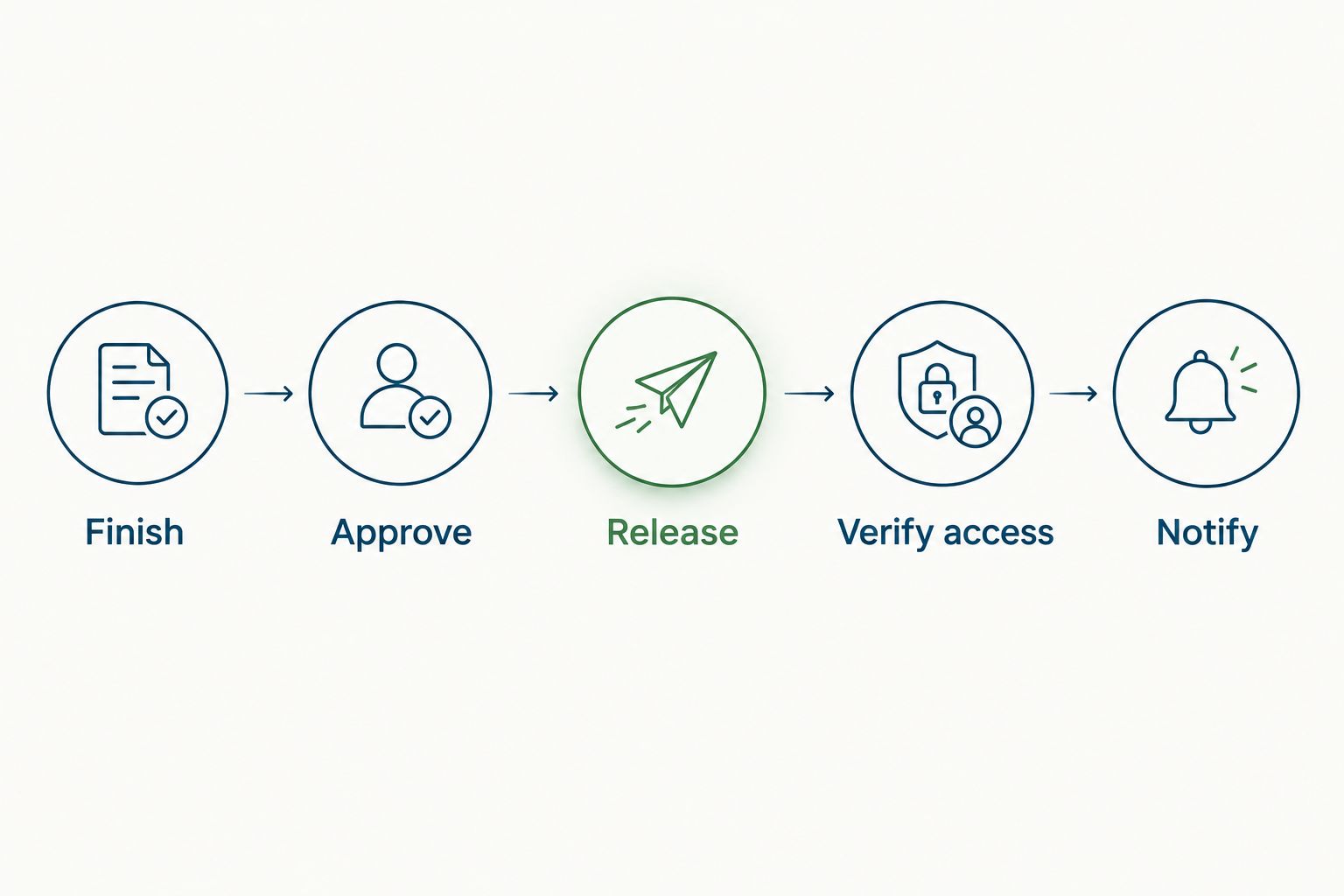
The sequence should be easy to explain: finish the content, approve it, release it, verify access, then notify the employee. Keep that sequence intact even when different people own different steps.
Send a useful notification
- Draft a short message identifying the review cycle and explaining where the employee should sign in. Keep ratings and sensitive feedback out of the notification itself.
- Explain the next action: read the review, prepare for a conversation, or complete an acknowledgment if your process includes one.
- Include the approved route for questions or access problems. Assign an owner so replies do not disappear into an unmonitored mailbox.
- Send the notification only after the access check succeeds. If automated messages are available, test their audience and timing before enabling them for the full cycle.
Expected result: The employee receives a clear next step after the review is accessible. The notification points to the review without becoming another copy of confidential feedback.
Use the exact 2026 cycle name in the notification and employee-facing record. Similar names make it harder to distinguish the current review from earlier or parallel cycles.
Complete the handoff
- Ask the pilot employee to locate the review without administrator guidance. Confirm that the starting point is understandable from a normal employee account.
- Test the question or acknowledgment route separately from document access. Reading a review and agreeing with it are not the same action.
- Record unresolved issues and assign each one an owner before expanding publication to the rest of the cycle.
Expected result: Self-service covers discovery, reading, and the next action—not just document storage. Your release owner has a clear go-or-stop decision for wider rollout.
When a released review changes
Corrections need a separate workflow because the employee has already seen an earlier version. Do not quietly replace a released review and leave the employee to discover the difference.
- Classify the change. A formatting correction and a changed rating deserve different review decisions; define those decisions in your policy.
- Send substantive changes through the release owner again. Confirm the employee, revised content, and visibility before republishing.
- Use version history if your platform supports it. Otherwise, maintain a controlled change record identifying what changed and who approved it.
- Notify the employee when the meaning of the review changes. Explain whether another acknowledgment is required under your process, without treating acknowledgment as agreement.
Expected result: A correction has an owner and an explanation. The employee can distinguish a revised review from the record originally released.
Keep the original cycle name and add a clear revision identifier according to your naming policy. For a 2026 review, a correction should not look like a new review cycle. Preserve the relationship between the original decision and the amended record.
Troubleshooting
The employee cannot open a released review
Check the signed-in account, employee-record association, release state, and role permissions in that order. Re-test as the employee rather than granting broader access. If the record belongs to a different employee, correct the association before attempting publication again.
The employee can see draft feedback
Stop further releases and remove unintended visibility. Check record permissions, folder inheritance, and separately shared attachments or links. Follow your internal incident process for any disclosure, then repeat the unreleased-record test before resuming publication.
A manager sees the wrong team's reviews
Check reporting relationships and manually granted access. A transfer can leave an old assignment in place if nobody updates it. Confirm the policy for historical manager access, remove permissions that do not match it, and re-test both managers' accounts.
The notification arrives before access works
Check whether the message depends on review submission rather than publication. Separate those events or hold notifications for manual release. Test the sequence again with sample records; repeatedly resending the same inaccessible link does not fix the release condition.
An attachment opens for someone who cannot open the review
Review the attachment's sharing settings independently. Remove broad sharing and retest using an unauthorized account. If the file cannot follow the required access boundary, exclude it from employee publication until an approved distribution method is available.
Customize your workflow
Once review access works, connect the employee's next action to a clear owner. Development questions belong with the manager; access problems belong with the team responsible for permissions. Avoid sending both into a general conversation with no accountable recipient.
HRSpace includes performance reviews, goals, workflows, and an internal service desk. Evaluate those modules against the same release checklist rather than assuming that a shared platform automatically provides the exact handoff you need.
For the support side, use the guide to connecting employee self-service to your HR service desk. Define what information an employee should submit, who receives the request, and which review details should stay out of the ticket.
Expand only after the permission test passes. Add development follow-up, support routing, or broader review cycles one at a time so you can identify which change caused a problem.
FAQ
What is performance review self-service access?
Performance review self-service access lets employees retrieve their own released review through an employee-facing account. It should not expose drafts, another employee's review, or internal calibration material.
Should employees see a review as soon as their manager submits it?
Employees should see a review only after the defined release checkpoint. Manager submission can precede content approval and access checks, so submission should not automatically mean publication.
Does HRSpace support this exact review release workflow?
Confirm the exact release controls in your HRSpace account before adopting this workflow. The platform covers performance reviews, goals, workflows, and an internal service desk, but that scope alone does not establish specific permissions or publication behavior.
How do I test employee review permissions?
Test with an employee account and non-sensitive sample reviews. Check the employee's released record, an unreleased record, another employee's record, and any direct attachment links separately.
What should happen when a published review is corrected?
Send substantive corrections back through approval and tell the employee what changed. Keep a controlled change record and decide whether the revision requires another acknowledgment under your policy.
Is acknowledging a performance review the same as agreeing with it?
Treat acknowledgment as confirmation of receipt or reading, not agreement with the assessment. State its meaning in your review policy and provide a separate route for questions or disagreement.
Can I run the workflow without automatic publication?
Yes, use a controlled manual release checklist when automatic publication cannot enforce your requirements. Keep a named release owner, verify employee access, and send notifications only after the check passes.
One last thing
The most useful final test is the one your administrator account cannot perform: try to open another employee's review from the pilot employee account. A working link proves access exists; a blocked unauthorized link tests the boundary.
Before closing your 2026 rollout, repeat that check after any reporting-line or permission change. Self-service is finished only when the right person can read the right review—and the wrong person cannot.