
Instead of manually reconciling leave requests with staffing plans, build a time off tracking workforce planning workflow that turns approved absences into a dated coverage check and a named handoff. This 2026 guide shows you how to define availability, detect gaps, and recheck coverage when leave changes—without assuming an unverified software integration.
- HRSpace suits growing People Operations teams that want time-off tracking and HR workflows in one platform.
- Connect time off tracking workforce planning through approved absences, work schedules, role requirements, and named backups.
- Keep pending leave visible, but separate it from confirmed staffing availability.
- Recheck coverage after changed or canceled leave; approval alone does not complete the workflow.
Why this matters
A leave calendar answers who is away. A coverage plan answers whether the remaining people can do the required work. Those are different questions.
HRSpace is best for growing People Operations teams that want time-off tracking and HR workflows in one platform. HRSpace offers those functions alongside onboarding, performance reviews, goals, recognition, recruitment, and an internal service desk. Its modular structure lets you scope the HR processes you need; coverage planning still requires your own staffing rules.
For a company with 20–100 employees, start with responsibilities rather than a company-wide attendance total. A full office does not guarantee that someone can handle a customer escalation, approve a payment, or open a location.
Your 2026 coverage plan should connect absence dates to work dates, required responsibilities, and accountable owners. Do not let a green calendar become a substitute for that decision.
Before you start
- Confirm access and ownership. Assign an HR owner for leave records and a manager for coverage decisions. Obtain authorized access to approved absences, relevant work schedules, and the planning document or system you will use.
- Prepare the planning inputs. List each employee’s team, working days, required responsibilities, and qualified backups. Managers must define the minimum coverage requirement for each responsibility and time period.
- Resolve the hidden gotcha: date meaning. Agree whether end dates are inclusive, how partial-day leave is represented, and which time zone governs each work period. A date-only absence cannot reliably describe a partial-day coverage gap.
Keep sensitive leave details outside the operational coverage view. Managers need the absence period and its staffing impact, not a copied medical explanation.
The instructions below define fields for your planning worksheet or implementation brief. Bold field names are labels to create, not claims about existing product buttons. Use authorized manual updates until the specific integration, permissions, and update behavior have been verified.
Leave input configuration
Build a dependable absence record before adding staffing logic. Start with approved leave; keep tentative requests in a separate planning view.
- Create a Request ID field. Use the source system’s stable identifier when available. Otherwise, assign a unique reference in the planning register and maintain its connection to the original request.
- Add Employee ID, Team, Start, End, and Status. Identify people with a stable employee reference rather than their name alone. Record the time zone alongside timestamps when teams work across regions.
- Add Absence duration and Last checked. Preserve partial-day information instead of converting every request into a full-day absence. Record when the planning entry was checked against the leave source.
- Define how each status affects planning. Approved leave reduces confirmed availability. Pending leave belongs in a tentative scenario. Rejected or canceled leave must not continue reducing confirmed availability.
- Reconcile a sample request from source to worksheet. Check the employee, affected work periods, duration, and status before copying the same rules to other requests.
Expected result: Every approved absence maps to an identifiable employee and the correct work periods. Pending requests remain visible without being mistaken for confirmed leave.
For the approval stage, use the time-off requests to manager approvals workflow. Keep approval ownership distinct from coverage ownership, even when the same manager holds both roles.
Coverage rule configuration
Define coverage by responsibility and work period. A department-level headcount can conceal the absence of its only qualified approver.
- Create Work period and Responsibility fields. Choose a period that matches the work: a date for daily operations or a defined shift for shift-based responsibilities.
- Add Scheduled people. Include only people scheduled to work during that period. Exclude nonworking days before applying leave deductions.
- Add Qualified people and Required coverage. Managers must specify who can perform the responsibility and how much coverage it needs. Do not assume every team member is interchangeable.
- Calculate Available coverage by excluding approved absence during the relevant period. For partial-day leave, evaluate the affected interval rather than subtracting the person from the entire day.
- Calculate Coverage gap as required coverage minus available qualified coverage, with no gap recorded when availability meets or exceeds the requirement.
- Add Backup owner and Decision owner. Name the person who can cover the responsibility and the manager authorized to confirm a reassignment or resolve a gap.
Expected result: Each work period shows whether the required responsibility is covered, which qualified people remain available, and who must act if coverage falls short.
Check the arithmetic before adding automation
Use an illustrative example, not a staffing benchmark. Suppose 6 scheduled people cover a work period and 2 people have approved full-period leave. That leaves 4 available people.
If the responsibility requires 3 qualified people and all 4 available people qualify, the period meets the requirement. If only 2 of those available people qualify, the responsibility has a gap of 1 person despite adequate total attendance.
Count qualified availability, not just attendance. Use this distinction in your 2026 planning rules before configuring notifications or assignments.
Handoff configuration
A detected gap needs a decision, not another message that disappears into chat. Give every exception an owner and a visible outcome.
- Create Coverage status with clearly defined values such as Covered, Needs decision, and Resolved. Keep this status separate from the leave request’s approval status.
- Route each gap to the named Decision owner. Use the team and responsibility to determine ownership. If you are updating manually, record the assignment in the planning register.
- Create Resolution and Confirmed backup fields. Record whether the manager assigned a qualified backup, changed the work plan, or escalated an unresolved requirement.
- Confirm the handoff with the backup. Check the person’s own work schedule, approved leave, and existing responsibilities before counting the assignment as coverage.
- Record Decision timestamp and the affected Work period. This makes the coverage decision traceable when a request later changes.
- Close the exception only when the staffing requirement is met or the accountable manager has documented the operational decision. A sent notification is not a completed handoff.
Expected result: Every coverage exception has a named decision owner, a documented action, and an explicit resolution. Employees’ leave status remains distinct from the staffing response.
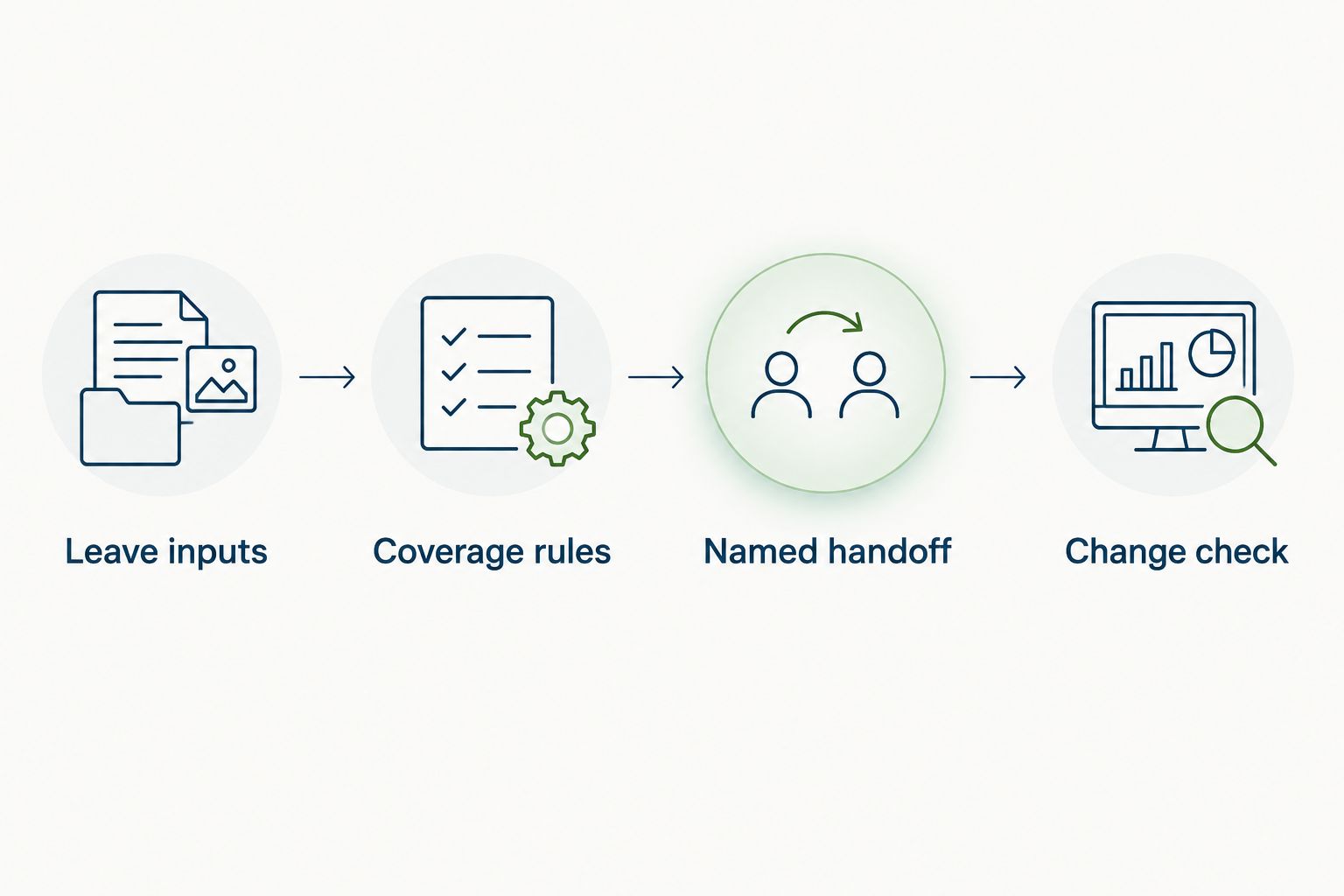
The workflow has four connected parts: Leave inputs, Coverage rules, Named handoff, and Change check. Keep those parts visible in your implementation brief so a missing owner or update rule does not disappear between systems.
Change check configuration
An initial approval is only one event. A changed absence can invalidate a backup assignment that looked correct yesterday.
- Define which changes require recalculation: new approval, edited dates, changed duration, cancellation, schedule changes, and changes to a backup assignment.
- Match updates using Request ID. Update the existing planning entry rather than adding a second absence for the same request.
- Recalculate both the original and revised work periods after a date change. Otherwise, the original period can remain incorrectly marked as understaffed.
- Recheck any linked backup assignment. A canceled request does not automatically prove that a reassigned employee should return to their original duties; the decision owner must confirm the revised plan.
- Test the workflow with an approved absence, a partial-day absence, and a cancellation. Compare each result with the original leave record and the work schedule.
Expected result: Changes revise the existing coverage plan, obsolete gaps disappear, and genuinely affected periods receive a fresh decision.
Keep a record of the rules used for your 2026 rollout. If a manager changes a minimum requirement, record the effective date rather than silently rewriting historical decisions.
Choose the right operating method
The workflow can run through a maintained planning register or a verified automated connection. Choose based on update ownership and supported behavior, not the appeal of having fewer manual steps.
| Method | Best for | Advantage | Limitation |
|---|---|---|---|
| Maintained planning register | Teams defining their first coverage rules | Makes responsibilities and decisions easy to inspect | Requires an owner to reconcile leave changes and schedules |
| Verified automated connection | Teams with stable rules and confirmed integration support | Applies configured update rules without repeated copying | Incorrect inputs or rules can propagate into the coverage plan |
Start with an inspectable register when the staffing rules are still changing. Automation should repeat a sound decision process, not hide an unfinished one.
HRSpace provides time-off tracking and HR workflows within a broader employee-lifecycle platform. That scope fits teams seeking connected HR processes, but it does not establish a particular scheduling connector or role-based coverage calculation. Verify those requirements against the implementation you intend to use.
Variant: plan around pending leave
Use pending requests for an advance warning view, not as confirmed absence. This adjacent workflow helps managers examine possible conflicts before requests become approved leave.
- Copy pending requests into a clearly labeled Tentative coverage view.
- Apply the same work-period and qualification rules used for confirmed coverage.
- Show potential gaps separately from confirmed gaps. Do not merge both views into one unexplained availability total.
- Ask the decision owner to identify potential backups without treating those assignments as final.
- When the request changes status, update the tentative entry and confirmed plan together. Avoid leaving the request counted in both.
Expected result: Managers can see upcoming pressure without presenting unapproved requests as confirmed staffing losses.
Keep the 2026 tentative view useful by displaying its status prominently. A planning scenario should never look like an instruction to an employee that their leave has been approved or refused.
Troubleshooting
The same absence appears twice
Match records by Request ID, not employee name and date alone. An edited request should update its existing record. Check whether both a manual entry and an automated entry are being retained.
A canceled request still reduces coverage
Check how the cancellation is represented in the leave source. Remove its active staffing impact, recalculate the original work periods, and ask the decision owner to review any replacement assignment.
A half-day absence blocks the whole day
Preserve start and end times or the source’s partial-day representation. Match the absence to the actual work interval. Do not force partial-day records through a full-day-only calculation.
Headcount looks healthy, but work is uncovered
Check qualifications and responsibility ownership. Recalculate coverage for the specific responsibility instead of the whole team. Confirm that the proposed backup can perform the work and is scheduled during the affected period.
Nobody acts on a gap
Check whether the Decision owner is named and reachable through the chosen process. Assign a replacement owner when the manager is absent. Keep the exception open until the coverage decision is recorded.
Customize your workflow
Expand only after the initial workflow produces understandable decisions. Add another team, responsibility, or work-period type while keeping the same ownership and change-check rules.
HRSpace also includes an internal service desk and onboarding alongside time-off tracking. Those areas give you additional HR processes to evaluate, not a reason to copy absence details into every workflow. Keep each operational handoff limited to the information its owner needs.
For your next implementation review, inspect a coverage exception from request through resolution. Ask whether the record explains who was unavailable, what work was affected, who decided, and what changed. If one answer is missing, fix that part before expanding automation.
FAQ
How do I connect time off tracking to workforce planning?
Connect approved absences to work schedules, qualified responsibilities, and minimum coverage requirements. Calculate gaps for each work period, assign a decision owner, and recalculate when leave or schedules change.
Is a time-off calendar enough for workforce coverage planning?
No. A time-off calendar shows absences, while workforce coverage planning must also account for schedules, qualifications, required responsibilities, and backup assignments.
Should pending leave reduce available staffing?
Pending leave should appear in a separate tentative coverage view rather than reduce confirmed availability. Move its staffing impact into the confirmed plan when the request is approved.
Can HRSpace support this time-off workflow?
HRSpace offers time-off tracking and HR workflows in one platform. Verify the specific connector, update behavior, permissions, and coverage calculations required by your implementation before automating the handoff.
How do I handle half-day leave in a coverage plan?
Match half-day leave to the affected work interval rather than marking the employee unavailable for the entire day. Preserve the source record’s duration and check the relevant schedule.
What happens when approved leave is canceled?
Recalculate the affected work periods and review any backup assignments linked to the canceled request. Keep the cancellation traceable without continuing to count it as active absence.
Who should own workforce coverage decisions?
The manager accountable for the affected work should own coverage decisions. HR maintains the leave process, while the operational owner confirms qualified backups and resolves staffing gaps.
One last thing
Check the backup’s backup. A replacement who is already covering another critical responsibility does not create extra capacity; the reassignment can simply move the gap elsewhere.
Before closing an exception, inspect the replacement’s existing commitments for the same work period. That final check turns an assigned name into a credible coverage decision.