
Instead of manually checking overdue employee requests, configure a deadline check that finds unresolved tickets, assigns an escalation owner, and records the handoff. SLA escalation service desk automation needs a deadline trigger, an unresolved-ticket check, and a named owner—not another reminder in chat.
- SLA escalation service desk automation should move overdue requests to a named owner, not just send alerts.
- HRSpace combines an internal service desk with HR workflows; verify deadline-trigger support before configuring escalation.
- Define response deadlines, resolution deadlines, business hours, and escalation ownership before enabling rules.
- Test overdue, resolved, paused, and already-escalated tickets before rollout.
Why this matters
An SLA is a service-level agreement: a defined target for responding to or resolving a request. An escalation is the action taken when that target is missed. Those are separate decisions. A deadline identifies the problem; an escalation assigns responsibility for fixing it.
HRSpace is best for growing companies seeking an internal HR service desk alongside employee-lifecycle workflows. Its stated scope includes onboarding, time-off, performance reviews, goals, recognition, recruitment, and workflow automation. The modular, per-employee model supports evaluating those areas together without treating every HR process as a separate software purchase.
For teams with 20–100 employees, the practical objective is clear: stop making HR remember which requests need chasing. Your 2026 escalation policy should specify what happens after a missed deadline, who receives the ticket, and what that person must do next.
This guide defines the configuration and acceptance tests for that workflow. Confirm the service desk's deadline triggers, available actions, and history controls before translating the instructions into settings. It does not assume specific button names or unverified product capabilities.
Before you start
- Get configuration access and policy approval. You need permission to change service desk rules, plus agreement from the people responsible for each request category and escalation queue.
- Prepare the ownership map. List request categories, response and resolution targets, operating hours, escalation owners, and backup owners. Keep sensitive employee information out of broad notifications.
- Resolve the clock gotcha first. Decide whether targets use elapsed time or business hours, which time zone applies, and whether waiting states pause the deadline. An undefined clock makes an apparently correct rule escalate the wrong tickets.
HRSpace provides an internal service desk with routing rules, SLA targets, and approval chains. Deadline-based escalation, notification destinations, reassignment actions, pause behavior, and duplicate prevention still need confirmation before this particular workflow is enabled.
Do not substitute a ticket-created event for a deadline check. Creation happens once; a ticket becomes overdue later. If the available workflow cannot react to a deadline or periodically evaluate overdue tickets, retain a supervised overdue queue until that capability is confirmed.
SLA policy
Write the policy before opening the rule editor. Your 2026 configuration should implement a decision that the team already understands, not create a policy accidentally through default settings.
- Identify the request categories covered by the rule. Separate requests by the team that can resolve them, rather than sending every overdue item to the same manager.
- Define the target being measured: first response or resolution. Acknowledging receipt is not the same as completing the employee's request.
- Specify the clock. Record the operating schedule, time zone, and treatment of weekends, holidays, and approved waiting states.
- Assign an escalation owner and backup owner for each category. Specify whether the original assignee retains responsibility or transfers it.
- Define closure. State what qualifies as resolved, what happens when a request reopens, and whether reopening creates a new deadline.
Expected result: You can explain a ticket's deadline and escalation destination without looking at its assignee's inbox. Every covered category has an owner and an explicit clock policy.
Choose the handoff
Notification and reassignment solve different problems. Compare the actions before choosing one; these are workflow designs to evaluate, not a claim that every service desk offers every action.
| Escalation design | Best for | Benefit | Limitation |
|---|---|---|---|
| Notify the escalation owner | Requests whose original assignee should retain responsibility | Adds oversight without changing the working owner | Leaves ownership unchanged; the recipient still needs a defined intervention |
| Reassign the ticket | Requests that need a different resolver | Makes the next responsible person explicit | Transfers context and can interrupt work already underway |
| Reassign and notify | Handoffs that require both ownership and awareness | Combines a responsible owner with a visible handoff | Requires duplicate controls and clear expectations for both recipients |
Choose the lightest action that creates clear responsibility. A notification is sufficient only when the recipient knows what intervention is expected. Reassignment is appropriate when the next person can actually move the request forward.
For employee-support requests involving personal information, review the recipient's access before sending ticket details. Keep escalation visibility narrower than general operational reporting.
Deadline trigger
The trigger determines when the workflow runs. Configure it around the deadline, then apply eligibility checks immediately before the escalation action.
- Confirm whether the service desk supports a deadline event or a scheduled overdue-ticket evaluation. Use the supported mechanism that checks the applicable SLA deadline.
- Limit the rule to the request categories and SLA policy you documented. Exclude categories with no approved deadline rather than assigning an arbitrary target.
- Require the applicable deadline to have passed. A missing deadline should enter a configuration-exception process, not count as an overdue request.
- Require the ticket to remain unresolved. Apply approved waiting-state exclusions according to the clock policy, not according to an informal team habit.
- Check whether the current deadline breach has already been handled. Distinguish a new breach from another evaluation of the same overdue ticket.
Expected result: The rule identifies an unresolved, eligible ticket whose applicable deadline has passed. It excludes completed tickets, unsupported categories, and previously handled instances of the same breach.
A reliable sequence is Deadline check, Eligibility check, Owner handoff, and History entry. Check eligibility as close to the handoff as the workflow allows; a ticket can change after the initial evaluation.
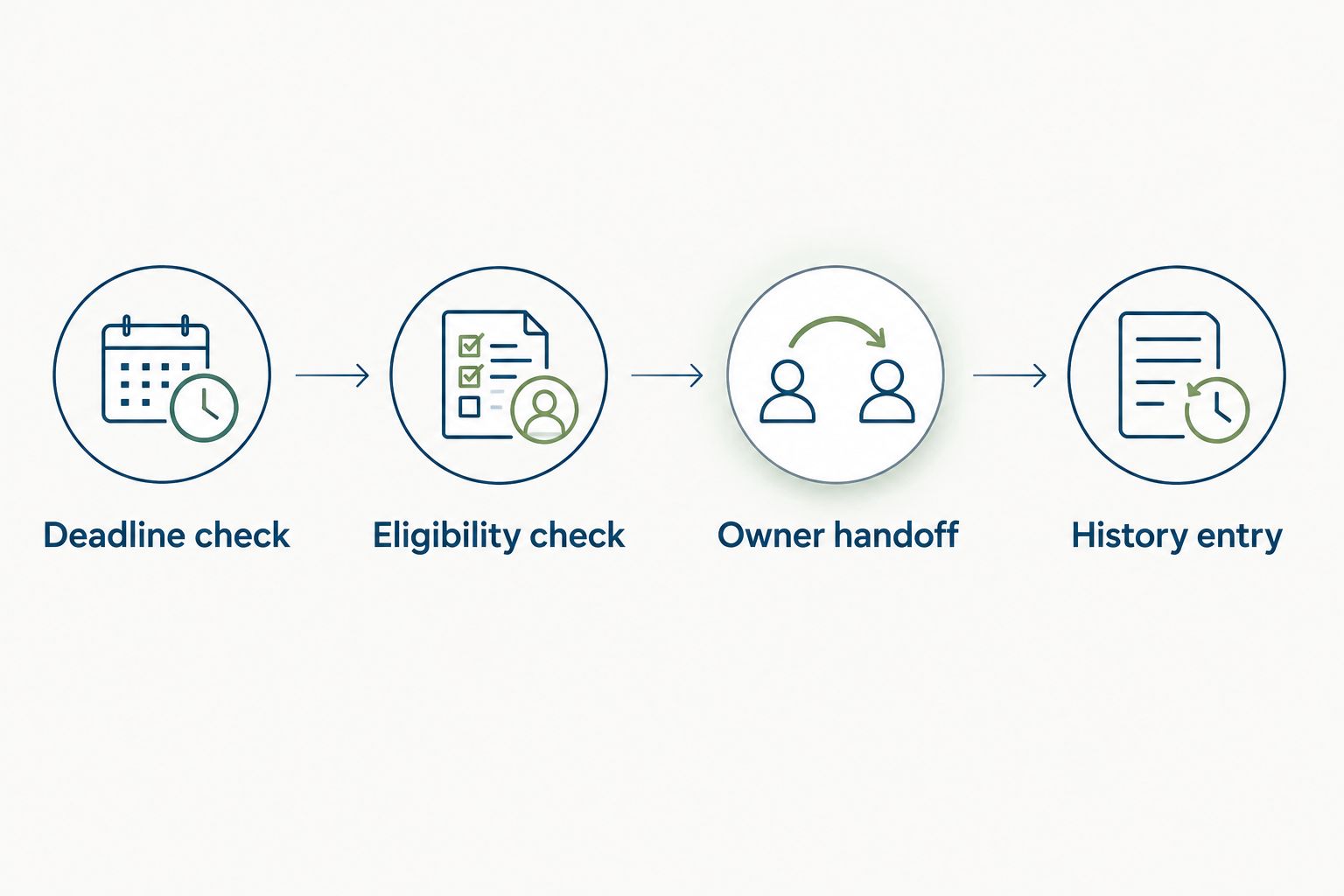
Document how the trigger treats business hours. A scheduled evaluation and an SLA clock are not interchangeable: the evaluation finds qualifying tickets, while the clock determines when those tickets become overdue.
Escalation action
The action should make the next move obvious. Build the handoff around ownership and context, then add notifications where they serve that handoff.
- Select the escalation destination from your approved ownership map. Route by request category or another documented responsibility rule, not by whoever happens to receive the original message.
- Apply the chosen handoff design using confirmed actions. If reassignment is unavailable, use a documented escalation queue or notification process with a named accountable recipient.
- Include the ticket reference, request category, missed target, current owner, and required next action in the handoff. Include sensitive details only where the recipient has appropriate access.
- Record that the breach was handled through a supported field or history mechanism. Tie that record to the applicable deadline so repeated evaluations do not create repeated handoffs.
- Define the fallback when the primary escalation owner is unavailable. An empty destination or inactive owner should produce a visible exception, not silently end the workflow.
Expected result: A qualifying ticket reaches an accountable person with enough context to act. The ticket's history explains why escalation occurred and prevents the same breach from being processed repeatedly.
Keep the employee's original deadline visible. Escalation records a missed target; it should not erase the miss by replacing the original target with a later date.
An approval chain also needs clear ownership. Escalating an overdue approval request should identify the person authorized to decide, not bypass the approval requirement. A manager who can observe a delay is not necessarily authorized to resolve it.
Acceptance tests
Test the rule before enabling it across the queue. Treat the following cases as the release checklist for your 2026 service desk workflow, not as optional troubleshooting after employees start receiving messages.
- Create a test ticket that qualifies for escalation under the approved SLA policy. Verify the destination, recorded reason, and required next action.
- Evaluate a resolved ticket with a past deadline. Confirm that it produces no new escalation.
- Evaluate a ticket in an approved waiting state. Confirm that its deadline follows the documented pause policy.
- Evaluate an already-escalated ticket again. Confirm that the same breach produces no duplicate handoff or notification.
- Test an unavailable escalation owner. Confirm that the backup route or configuration exception becomes visible.
- Resolve a test ticket after the initial check but before the action, where your testing controls allow it. Verify that the workflow checks current eligibility before acting.
Expected result: Valid overdue requests escalate, excluded requests remain untouched, and repeated evaluations do not flood the team. Keep the test outcomes with the rule's policy documentation.
Start with a bounded request category and review its exceptions before expanding. This keeps an ownership mistake from spreading across unrelated HR requests.
Escalate again when ownership changes
A useful adjacent workflow handles an overdue ticket whose escalation owner becomes unavailable or whose request category changes. It addresses a different problem from the initial deadline breach: the existing escalation no longer has the right destination.
Use this variant only if the service desk supports the relevant update event and conditions. Otherwise, maintain a supervised exception queue for ownership changes.
- Check that the ticket remains unresolved and overdue.
- Recalculate the destination from the current category and ownership map.
- Act only when the current destination is invalid or differs from the required owner.
- Record the reason for rerouting without resetting the original missed deadline.
Best for: Teams where requests move between functions or escalation responsibility changes during absence coverage. The benefit is a valid owner after circumstances change; the trade-off is additional rule complexity and a greater need for duplicate prevention.
Do not treat every ticket edit as a reason to escalate again. A corrected description is not a new SLA breach.
Troubleshooting
Tickets escalate outside working hours
Check whether the policy uses elapsed time or business hours, then compare the ticket deadline with the configured schedule and time zone. Correct the clock calculation before changing notification behavior. Suppressing an alert does not fix an incorrectly calculated deadline.
The same ticket escalates repeatedly
Check whether the action records the handled breach and whether later evaluations check that record. Use a supported marker tied to the applicable deadline. A permanent ticket-wide marker can incorrectly suppress escalation after a legitimate reopening.
Resolved tickets still escalate
Check whether the rule uses current ticket status at action time. Remove reliance on an earlier snapshot where supported, and exclude resolved requests immediately before the handoff. Retest the case where resolution happens between evaluation and action.
Tickets reach the wrong person
Compare the request category with the ownership map and fallback rule. Correct inactive destinations and ambiguous routing conditions. Do not fix the symptom by copying more people into every notification.
Overdue tickets never escalate
Inspect the deadline, eligibility conditions, waiting-state policy, and evaluation mechanism separately. Confirm that the ticket has an applicable deadline and that the trigger actually evaluates it after that deadline passes. A creation-only rule cannot perform a later deadline check by itself.
Customize your workflow
Connect escalation to the processes that generate employee requests. Start with routing service desk tickets when new hires start, so the first owner is correct before an SLA breach needs intervention.
HRSpace brings employee-lifecycle modules and an internal HR service desk into one platform. That scope is useful when onboarding, time-off, and employee support belong to the same People Operations team; it does not remove the need to verify the specific trigger and action this workflow requires.
For your 2026 review, examine missing owners, incorrect clocks, repeated handoffs, and unresolved escalations. Improve the policy causing those exceptions before adding more alerts. Expand categories only when their owners and acceptance tests are ready.
FAQ
How do I automatically escalate service desk tickets after an SLA deadline?
Use a deadline event or scheduled overdue-ticket evaluation, check that the ticket remains unresolved, and send it to a named escalation owner. Confirm the service desk supports the required trigger, action, and duplicate controls before enabling the rule.
Does HRSpace support automatic SLA breach escalation?
HRSpace's provided product scope confirms an internal service desk, SLA targets, routing rules, approval chains, and workflow automation. Confirm deadline-triggered escalation and its available actions before treating this specific workflow as supported.
Should SLA escalation notify a manager or reassign the ticket?
Notify a manager when the original assignee should retain responsibility; reassign when a different resolver needs to take ownership. Choose based on who can take the next action, not who needs general visibility.
What is the difference between a response SLA and a resolution SLA?
A response SLA defines the target for responding to a request, while a resolution SLA defines the target for completing it. Track and escalate each according to its own policy; an acknowledgment does not complete the request.
How do I stop duplicate SLA escalation notifications?
Record that the applicable deadline breach has been handled and check that record before repeating the action. Use supported controls that distinguish the same breach from a new deadline after reopening.
Should waiting tickets pause the SLA clock?
Pause the clock only when your approved SLA policy permits it. Define eligible waiting states and confirm the service desk's clock behavior before excluding those tickets from escalation.
What happens when an escalated ticket is reopened?
Apply the reopening policy you defined for that request category. Specify whether reopening creates a new deadline and ensure an earlier escalation record does not suppress a legitimate new breach.
One last thing
An escalation is incomplete until someone owns the next action. In your 2026 policy review, ask the escalation recipient what they must do when a ticket arrives. If the answer is only to read the notification, fix the handoff before expanding the automation.